
Recommendation: Logitech MX Ergo Advanced (Plus) Wireless Trackball Mouse
I bought this mouse less than 24 hours ago, and I'm already completely in love with it.

Spanish version / versión en Español: Recomendación: Logitech MX Ergo Advanced (Plus) Wireless Trackball Mouse.
I bought this mouse less than 24 hours ago, and I’m already completely in love with it. I’m honestly even a little mad at Logitech for not sending me an email with the marketing for this product as soon as it came out, LOL!
My previous mouse
Before starting with why I love my new purchase, let me give you a bit of background on my previous mouse. It was a Logitech M570 (also a wireless trackball mouse). I was pretty comfortable with it, but I always thought it needed more buttons. However, the newer versions still had pretty much the same number of buttons, so I never thought of upgrading it…until now.
If you don’t know what a trackball mouse looks like, here it is:

Why do I love these?
- I don’t need a mouse pad.
- I don’t need to move my hand; I just move my thumb.
- Less desktop space is needed.
- It can be used on almost any surface.
I say it needs more buttons because you basically have (1) the regular left-click, (2) right-click, and (3) scroll wheel button; plus, you can find the two buttons between the trackball and the left-click button.

I wanted to program several buttons to do some of my more common tasks - I’ll mention them later in the post. Unfortunately, I was only able to use buttons 3, 4, and 5 for my custom functions.
There are a lot of mice with more than 5 programmable buttons, but I wanted it to be specifically a trackball mouse. This brings me to my new toy!
Logitech MX Ergo Advanced (Plus) Wireless Trackball Mouse
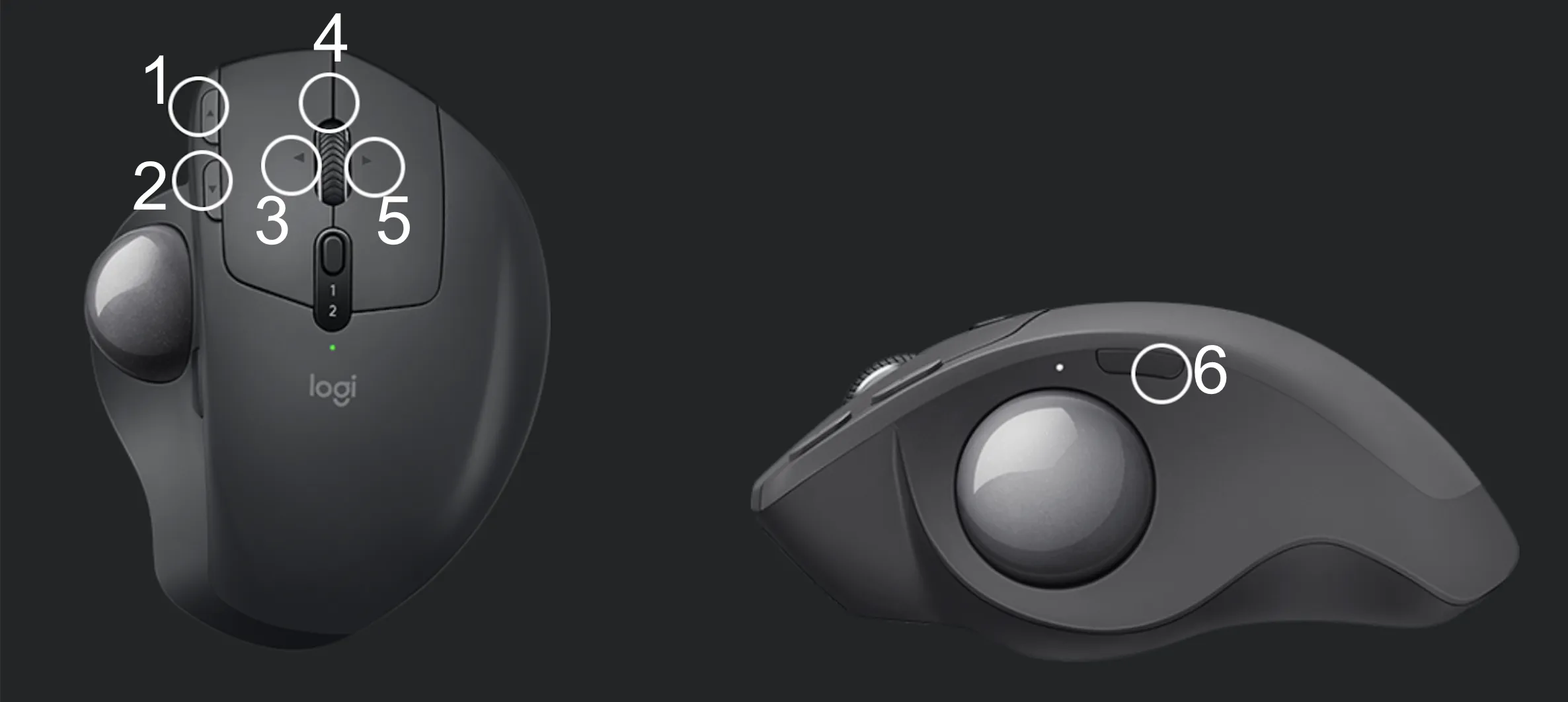
This mouse has 9 buttons in total! The picture may be misleading because it’s only pointing to the 6 programmable buttons, but it’s not counting the left-click, right-click, and the small button in the middle that says 1 and 2. These 3 buttons will always maintain their specific functions and cannot be changed.
I’m sure you’re curious as to what I have programmed these 6 buttons to do. Here it goes:
- Left-top button: Delete.
- Left-bottom button: Enter/Return.
- Scroll wheel left button: Move to the desktop to the left (for Mac computers).
- Scroll wheel middle button: Screen capture.
- Scroll wheel right button: Move to the desktop to the right (for Mac computers).
- Button over the trackball: Maximize/minimize window.
Before I got an additional keyboard, I didn’t have to use numbers 3 and 5 that often. I could just use my Macbook’s trackpad to swipe left/right and change my desktop. However, after acquiring the keyboard, this became a bit more work. I had to either reach out to the laptop’s trackpad with my left hand or use the keyboard shortcut with my right hand (which I had to switch between the keyboard and the mouse). Neither option was good enough for me.

With my previous mouse, I had to start using the two additional buttons (4 and 5) to move to the left/right desktop. So, my previously programmed keystrokes (Delete and Enter/Return) were no longer in the picture. This, again, was not good enough for me.
Now I get to have all my 4 favorite tasks PLUS 2 more buttons that make my life easier!
Is that all?
Of course not! This mouse is a MASTERPIECE! But the buttons were my biggest need. Also, the M570 requires one AA battery, but the MX Ergo can be recharged with a USB.
By the way, remember the middle button with the 1 and 2 numbers underneath it that you could not program?
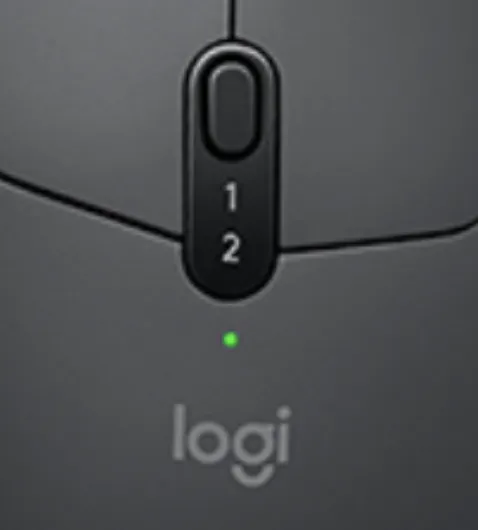
Well, that button is for alternating between 2 different computers with the same mouse! This is incredibly useful if you’re using several systems at the same time. It can be annoying to have to use different hardware for the same purpose. I tested this functionality, and it doesn’t even have a lag to it. Once you push the button, the other computer can be used immediately — no need to wait for even 1 second.
It still has more great specs, but they weren’t that important for my day-to-day. You can read more about them here.
Finally, I leave you this quick 30-second video for a preview!
FAQs
Frequently asked questions about this post.
-
What's the difference between the Logitech M570 and the MX Ergo for me?
The M570 gave me only 5 buttons, of which I could only program buttons 3, 4, and 5 for custom functions, while the MX Ergo has 9 buttons in total with 6 of them programmable; the MX Ergo also recharges over USB whereas the M570 needs one AA battery, and the MX Ergo can alternate between two paired computers, which the M570 cannot.
-
How many buttons does the MX Ergo have and how many can I program?
It has 9 buttons in total: the left-click, right-click, and the small middle button labeled 1 and 2 always keep their fixed functions and cannot be changed, leaving 6 programmable buttons that you are free to customize.
-
What did you program the 6 buttons to do?
I set the left-top button to Delete, the left-bottom button to Enter/Return, the scroll-wheel left button to move to the desktop on the left on Mac, the scroll-wheel middle button to screen capture, the scroll-wheel right button to move to the desktop on the right on Mac, and the button over the trackball to maximize/minimize the window.
-
What does the middle button labeled 1 and 2 do?
That button alternates between two different computers using the same mouse, which is useful when you work across several systems; I tested it and there is no lag, so once you push the button the other computer can be used immediately with no need to wait even one second.
-
Why do you prefer a trackball mouse?
I love trackball mice because I don't need a mouse pad, I don't need to move my hand since I just move my thumb, less desktop space is needed, and it can be used on almost any surface.