
How to Integrate AWS Lambda with MuleSoft
In this blog post, I will demonstrate how to Integrate AWS Lambda with MuleSoft.

In this blog post, I will demonstrate how to Integrate AWS Lambda with MuleSoft. The GitHub repository with the Mule Project can be found at the end of the post.
AWS Lambda is an on-demand cloud computing resource offered as a function-as-a-service by AWS. AWS Lambda allows you to add custom logic to AWS resources such as Amazon S3 buckets and Amazon DynamoDB tables, so you can easily apply it to compute data as it enters or moves through the cloud. AWS Lambda was designed for use cases such as image or object uploads to Amazon S3, updates to DynamoDB tables, responding to website clicks, or reacting to sensor readings from an IoT-connected device. AWS Lambda can also be used to automatically provision back-end services triggered by custom HTTP requests, and “spin down” such services when not in use, to save resources.
Anypoint Connector for Amazon Lambda (Amazon Lambda Connector) enables you to execute AWS Lambda operations within your Mule flows. You can then use the response of the Lambda operation to process another Mule flow as needed.
In this article, we will see how we can use the Anypoint Lambda Connector to Integrate.
For more information on Amazon Lambda Connector 1.0 - Mule 4, refer to this link.
1. Create an AWS Free tier account
Open the link https://aws.amazon.com/console/. The below page opens up:
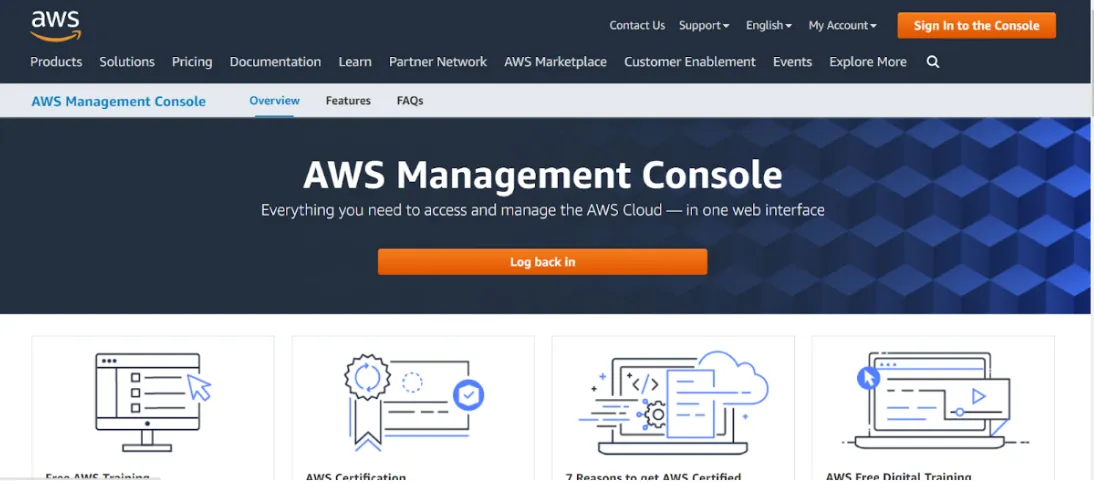
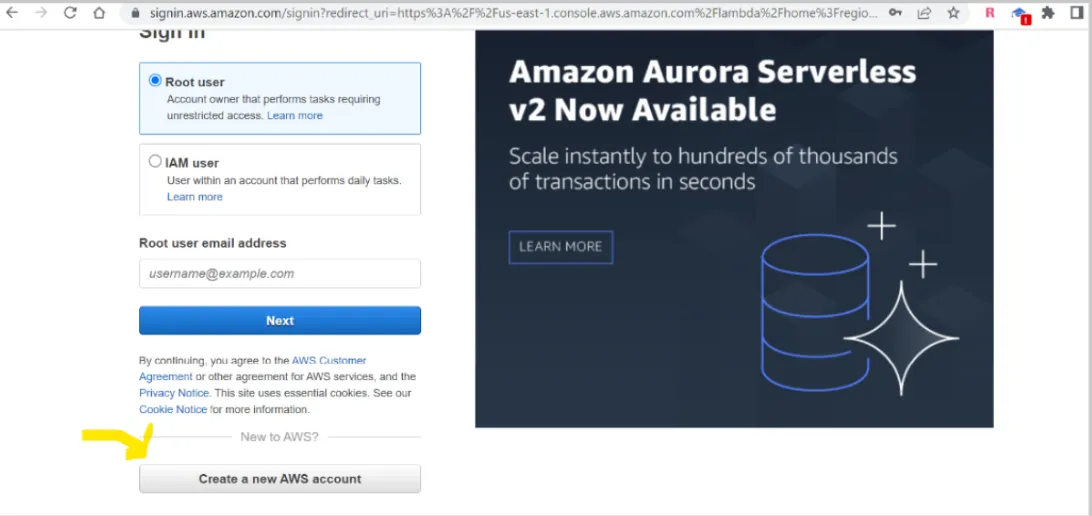
Click Sign In to the Console and then create a new AWS account.
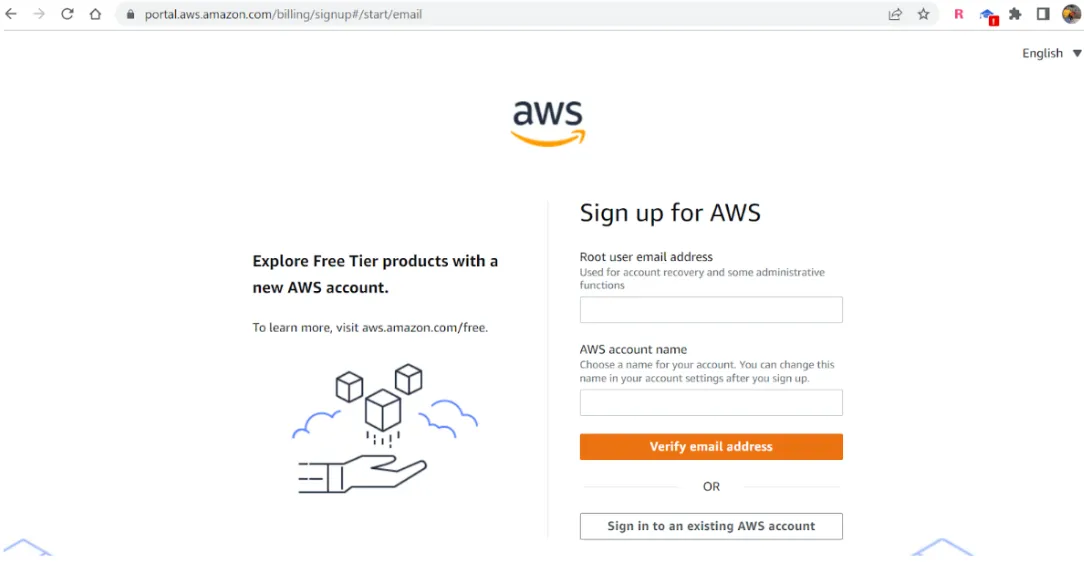
Provide the required details and click on Verify email address.
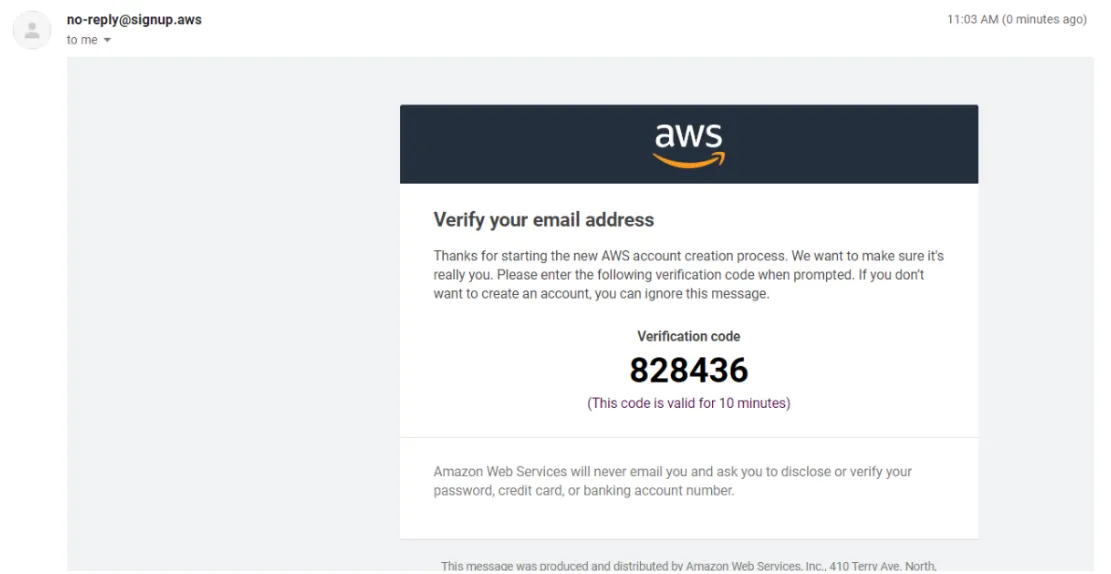
A verification code will be sent to your email. Enter the code and click on Verify.
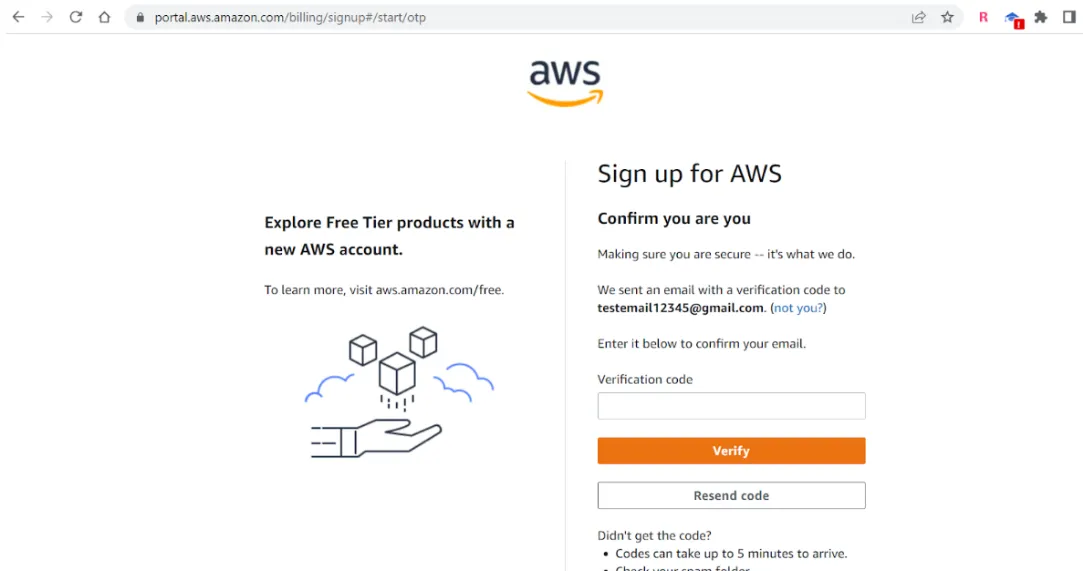
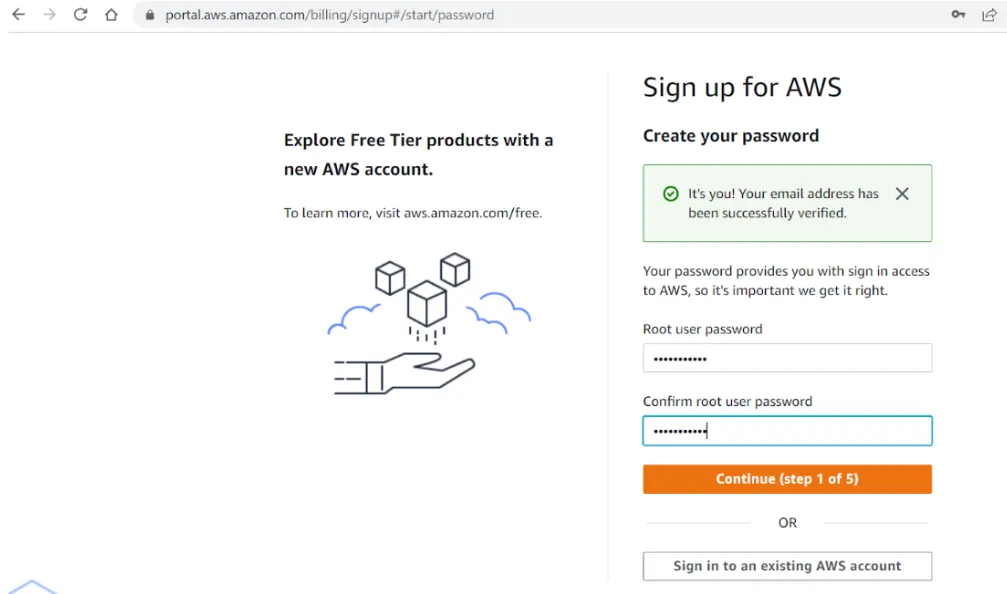
Once the verification is successful, provide the password and click on continue (step 1 of 5).
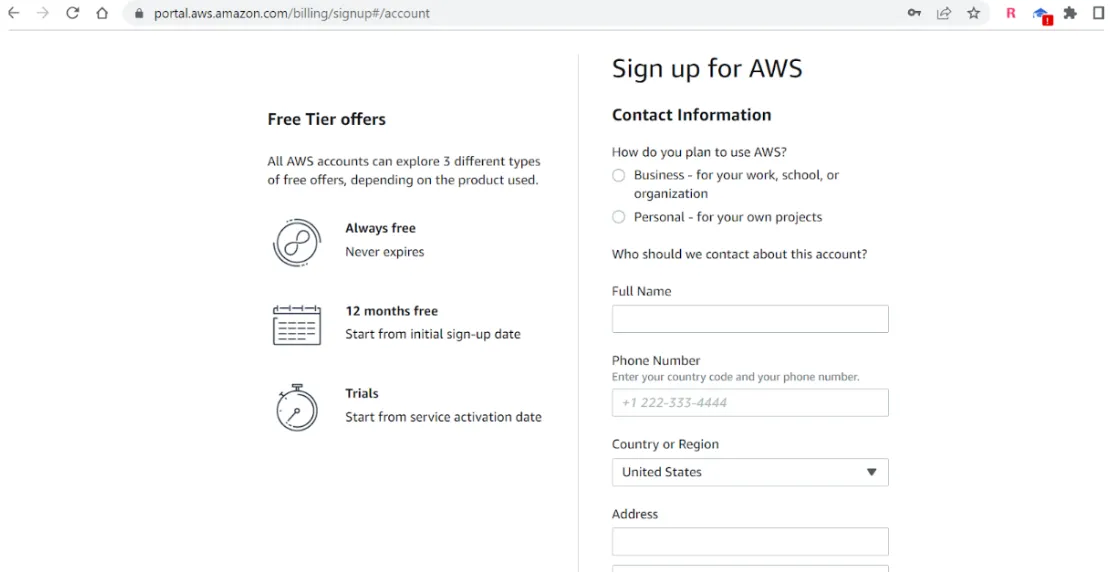
Provide all the contact information and click on continue (step 2 of 5).
It asks for credit card information. You can safely provide as you won’t be charged unless you exceed the free tier limit. For more information on this please watch this video on YouTube (AWS Free Tier Overview). After this step click on Create Account.
After this sign in to the AWS console by selecting the Root user.
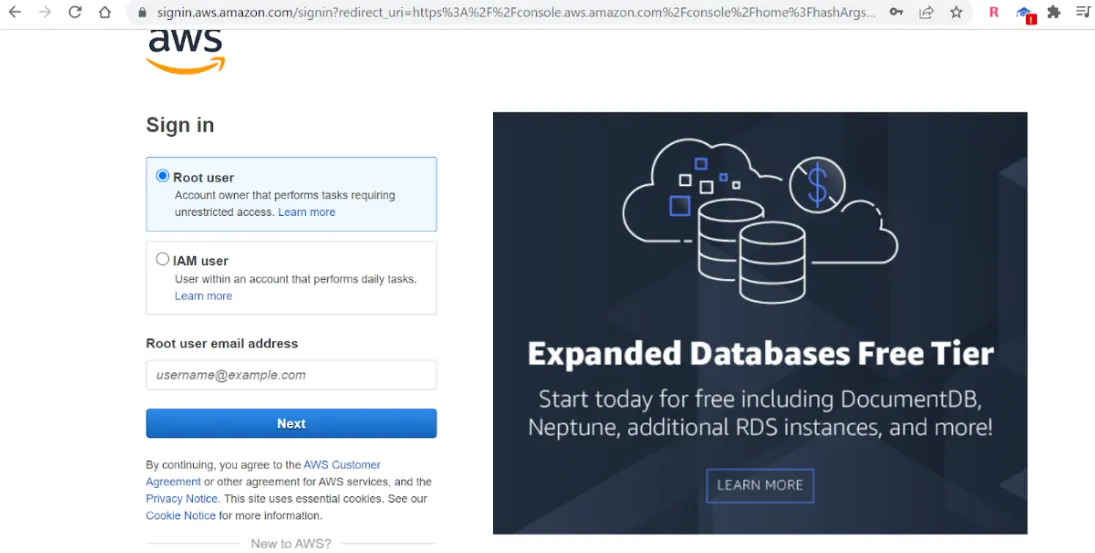
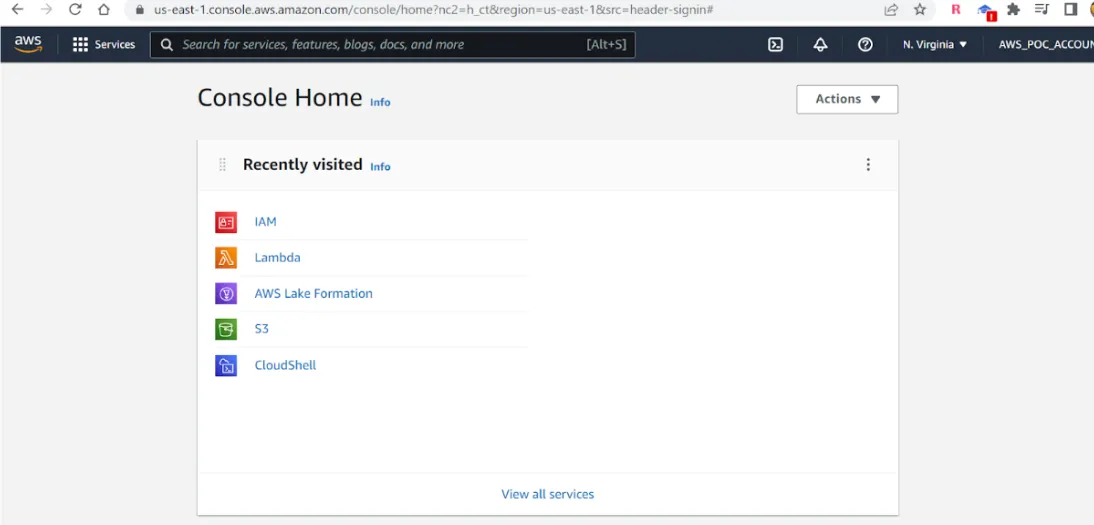
You will now be logged in to the AWS Console as shown below:
2. Manage Access to AWS resources
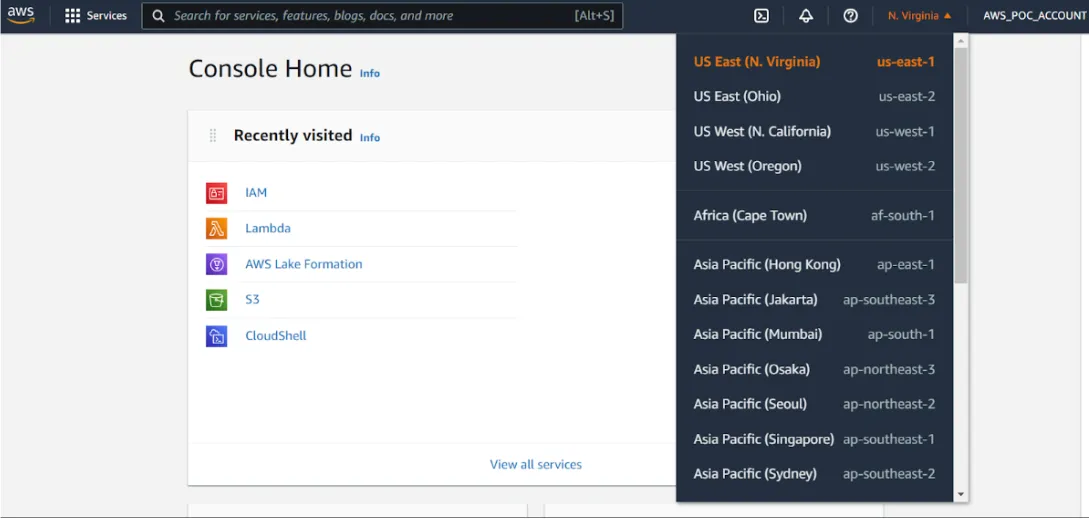
First, select the region of your choice from the list given below:
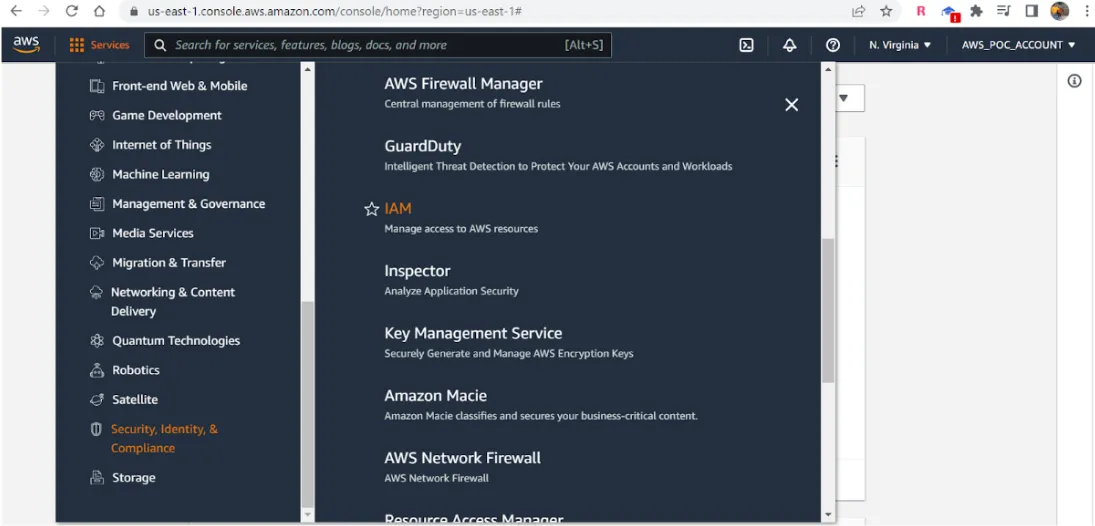
Click on Services -> Security, Identity & Compliance -> IAM.
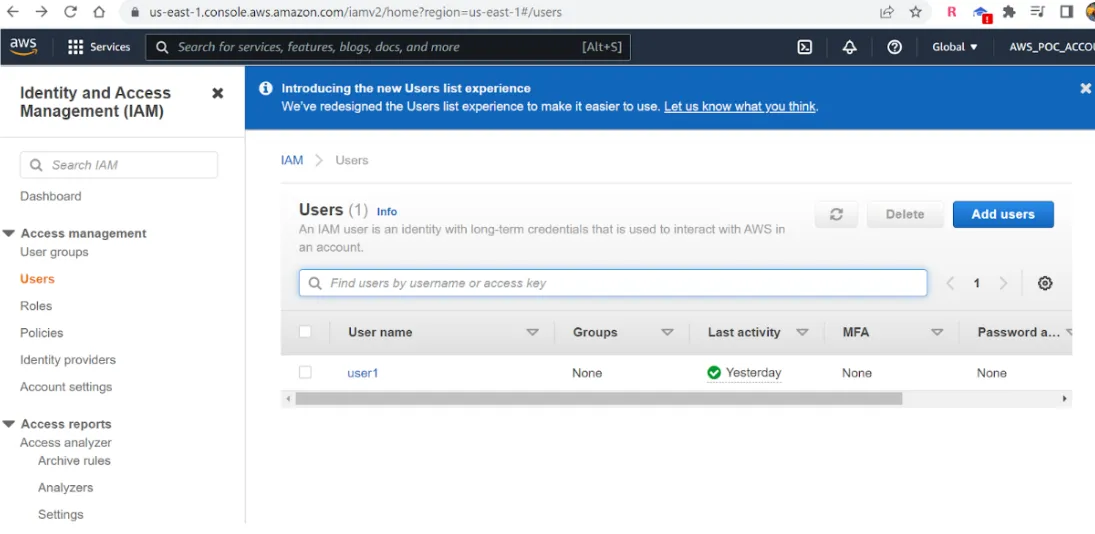
Click on Users and on Add Users.
Provide the User Name and Select AWS Credential type as shown below:
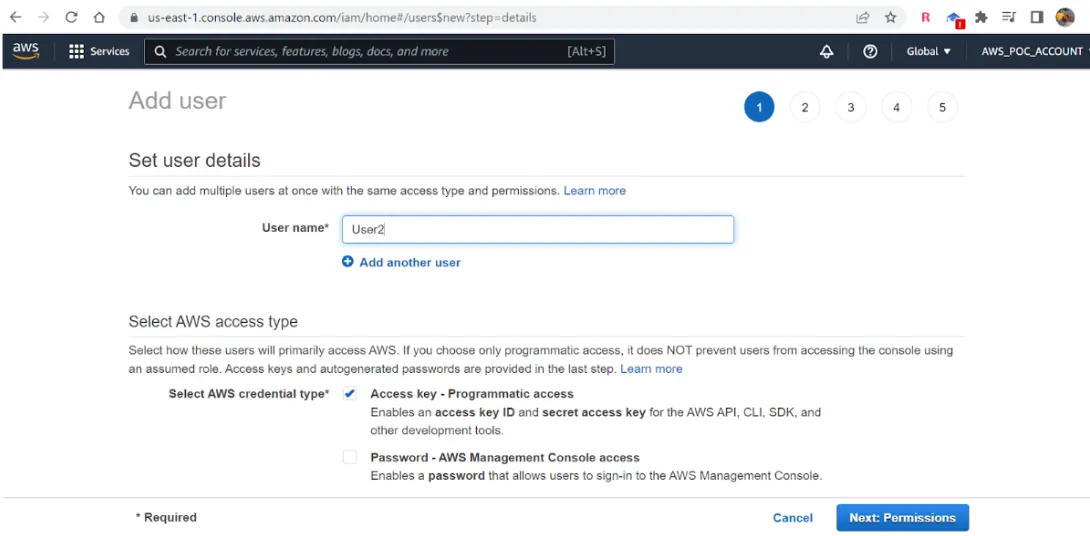
Click on Next: Permissions and on Attach existing policies directly.
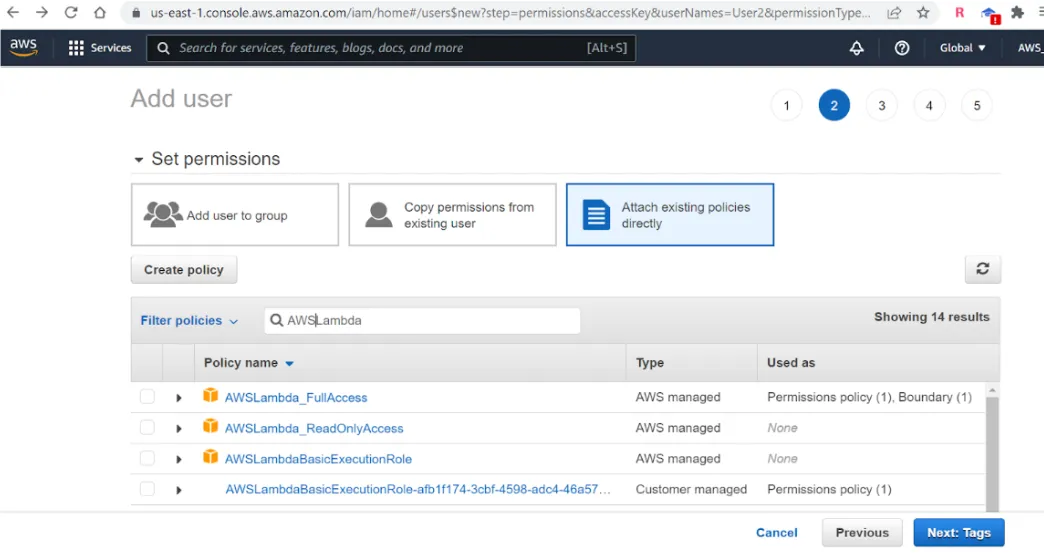
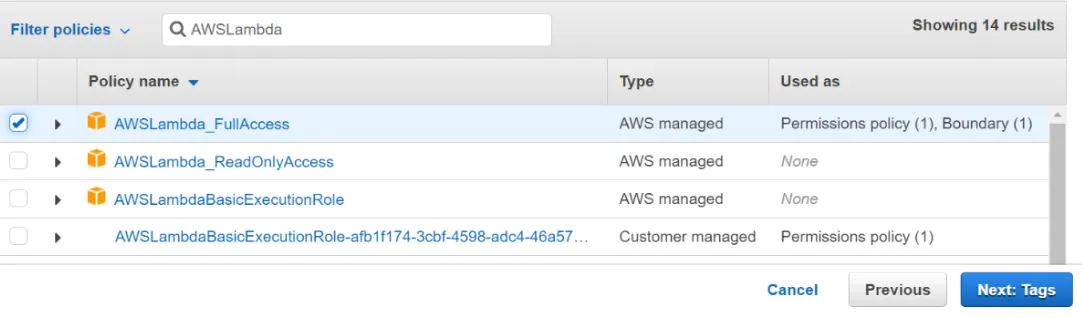
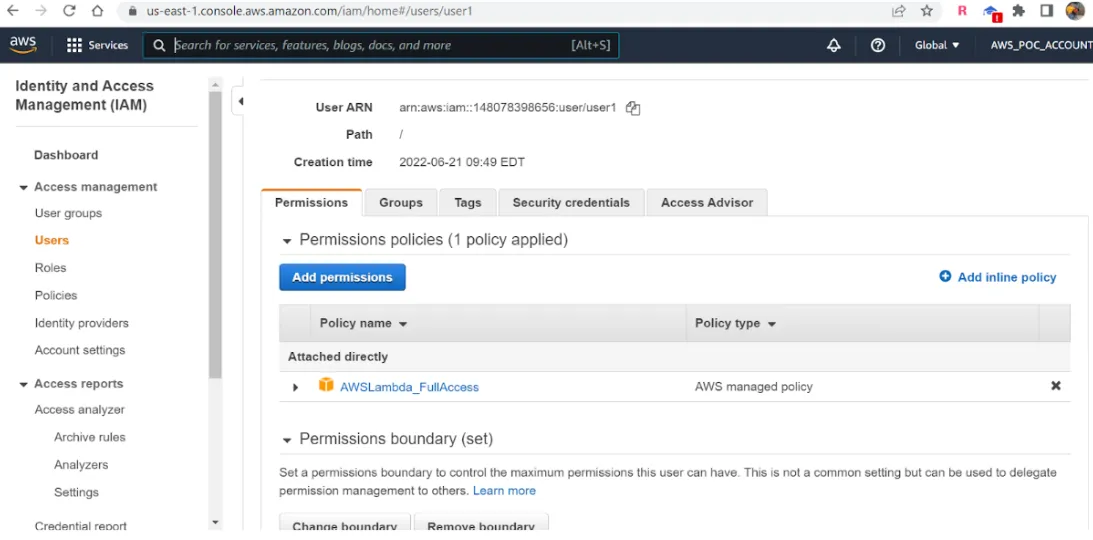
Click on AWSLambda_FullAccess and Next: Tags.
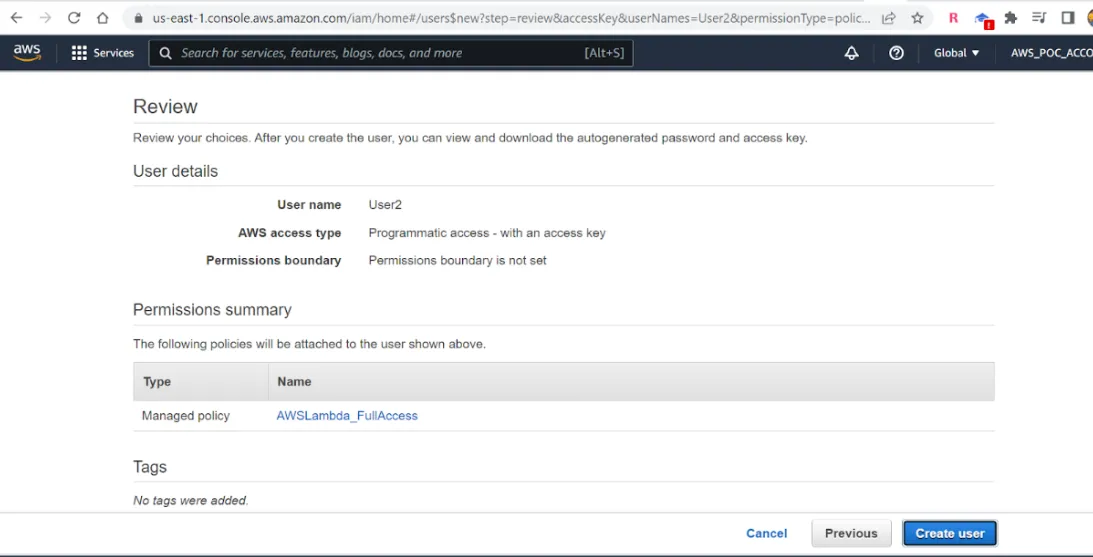
Click on Review and click on Create User.
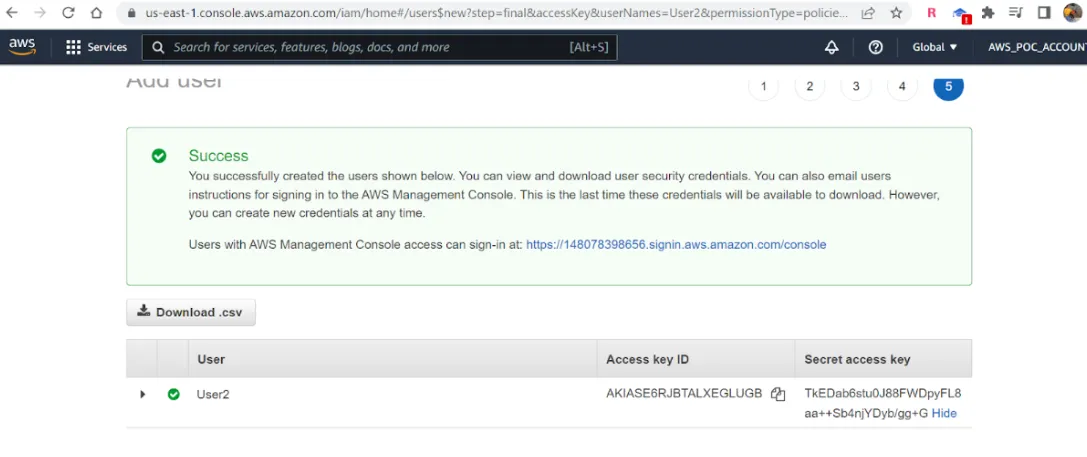
The User is created successfully. Make a note of the Access Key ID and Secret access key as you cannot retrieve them again.
3. Create a Lambda Function in AWS
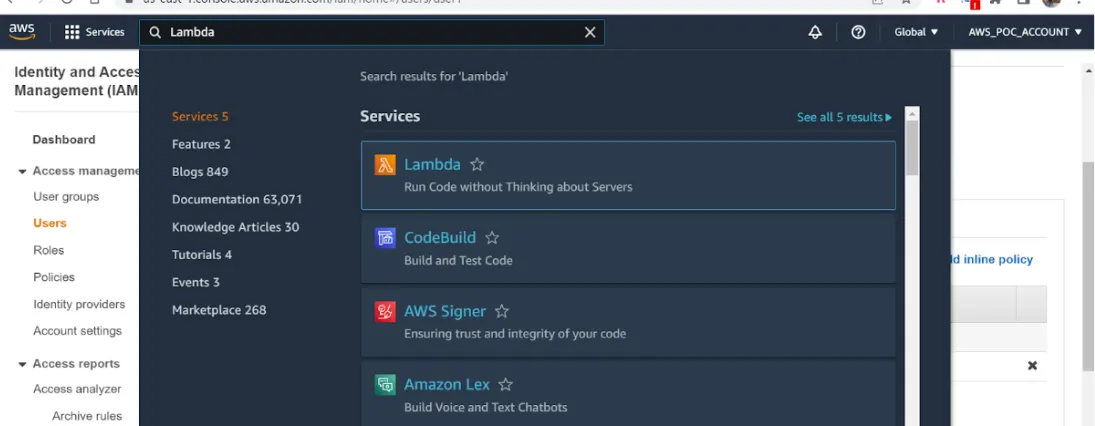
In the AWS console search Lambda and click on the search result Lambda.
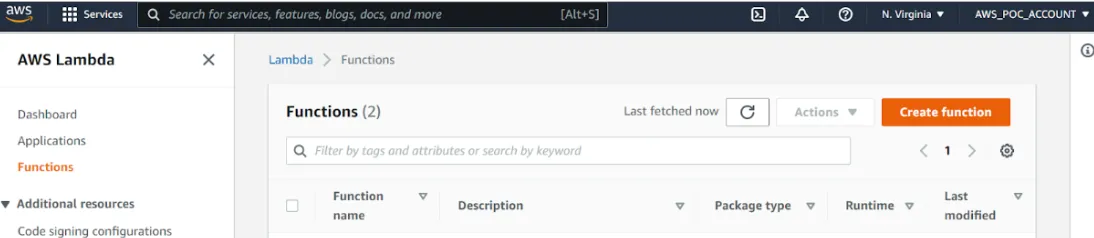
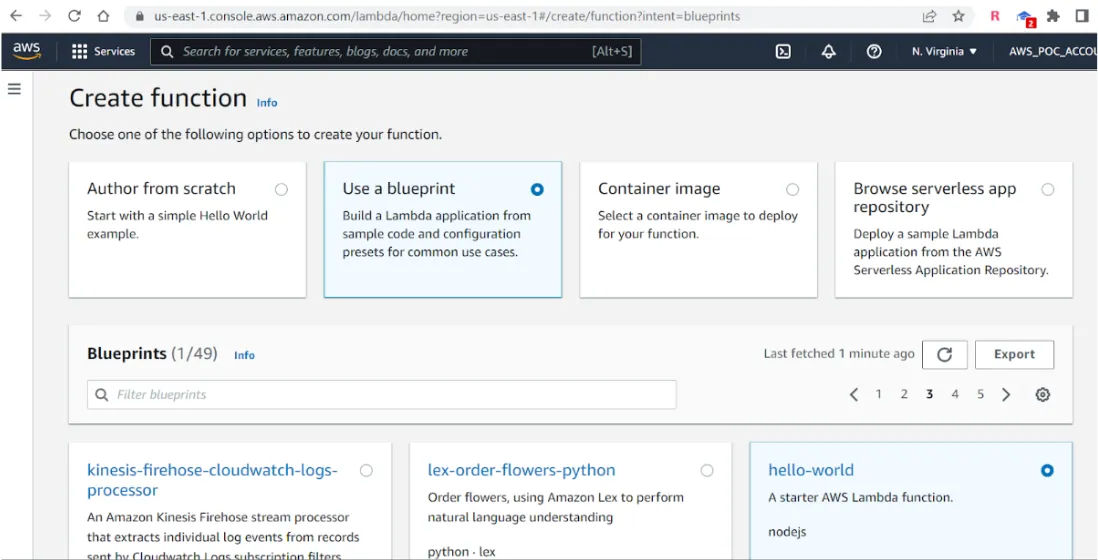
Click on Create Function.
I used a simple “hello world” blueprint.
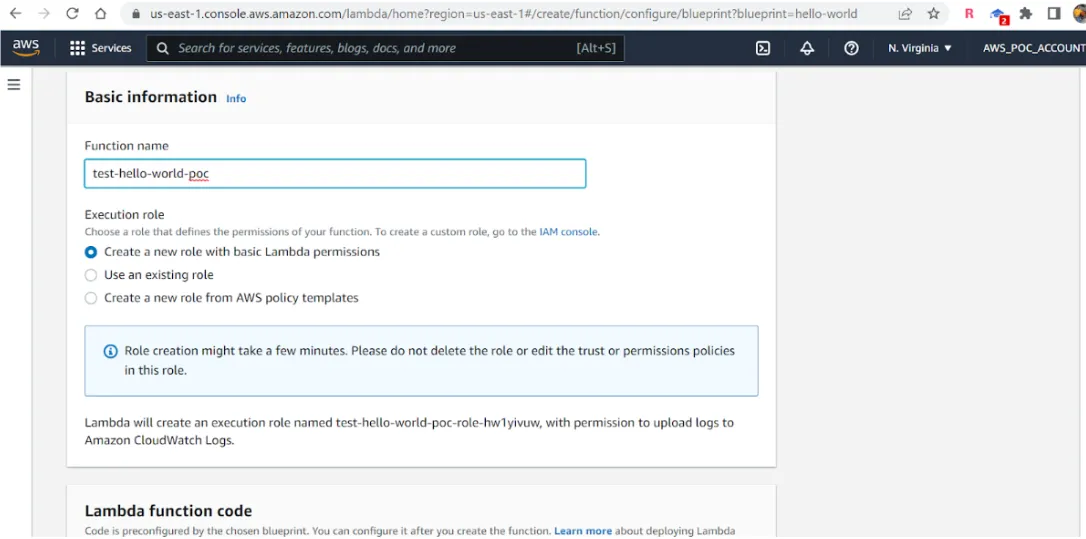
Provide all the basic information and click on Create Function.
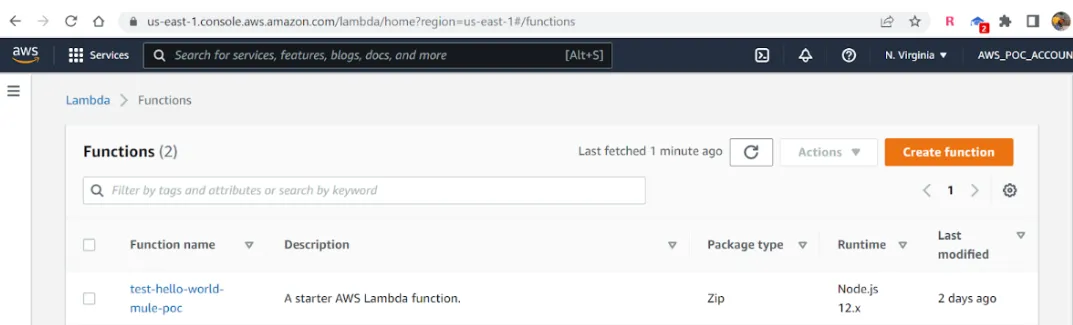
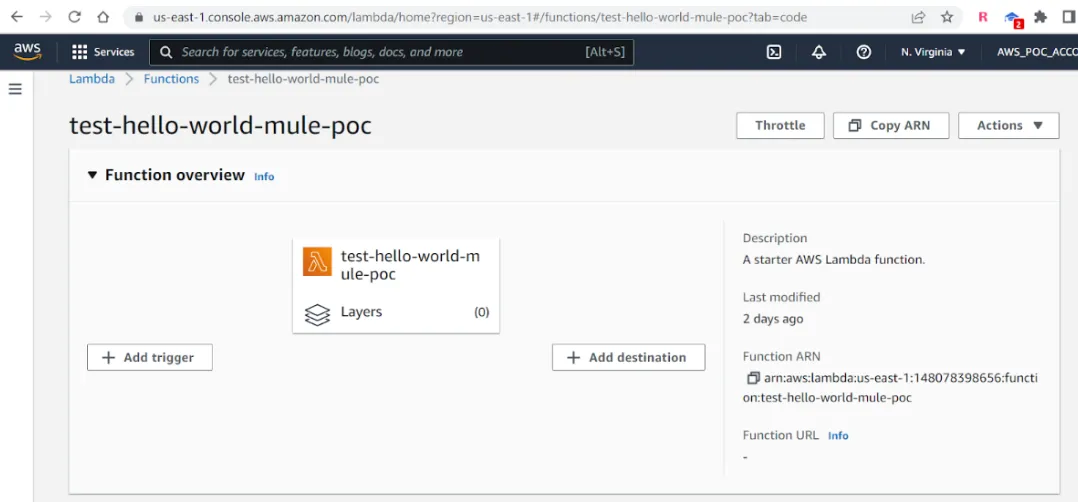
The Source Code of the function can be seen below:
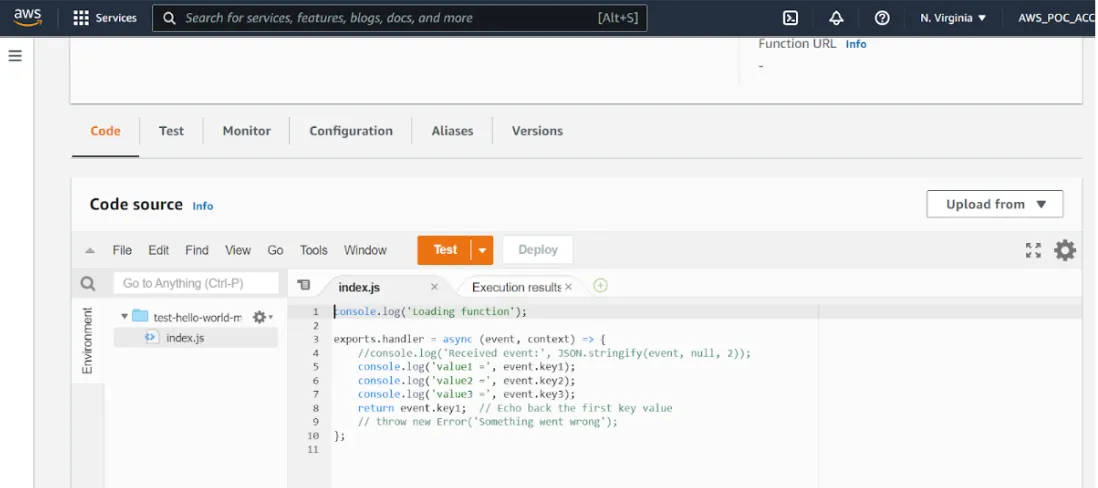
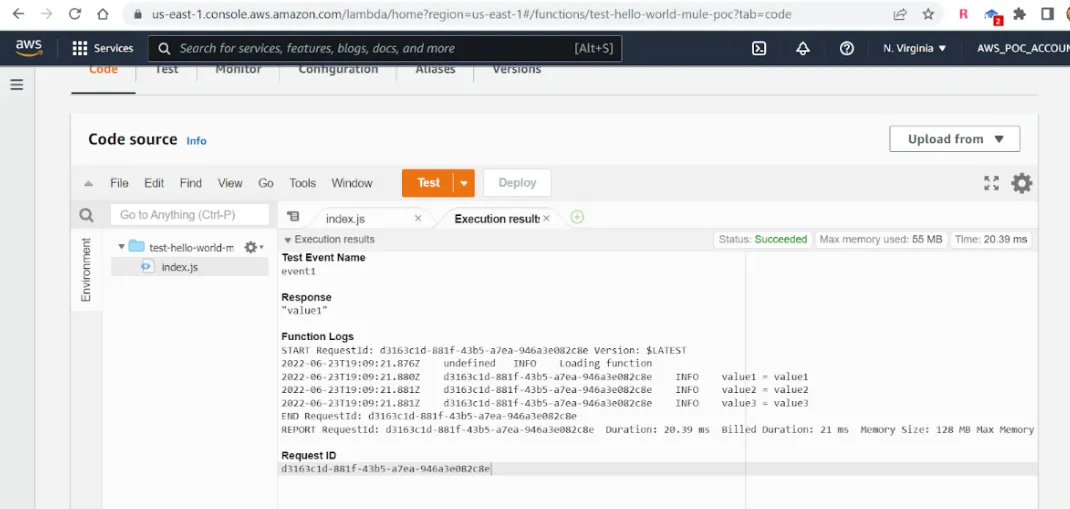
You can execute the script by clicking on Test and the execution result is as shown below:
4. Configure Amazon Lambda Connector in MuleSoft
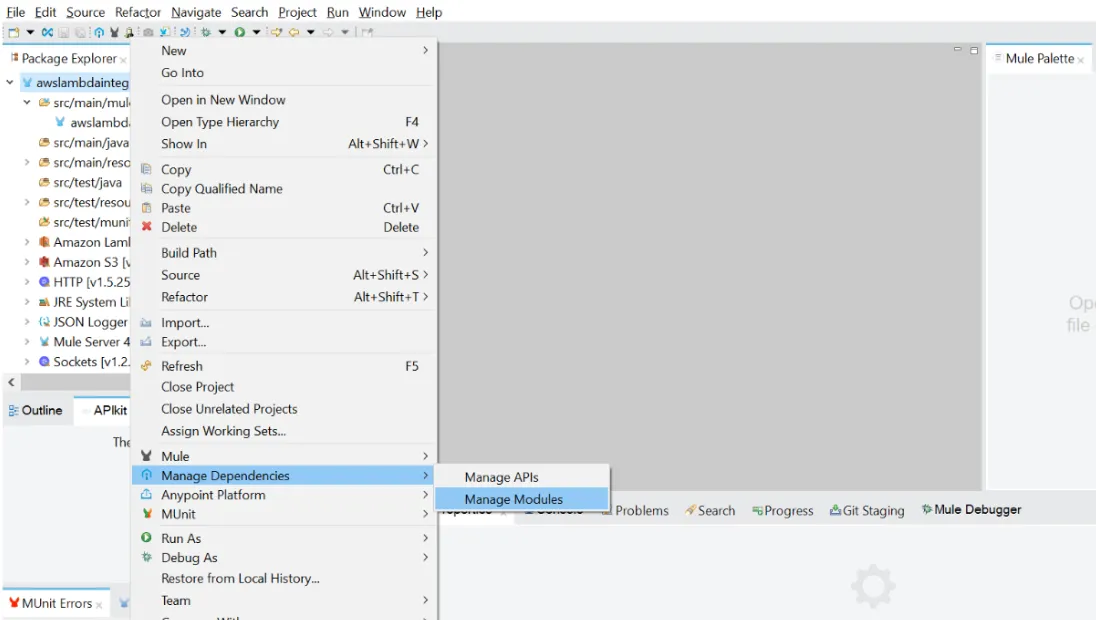
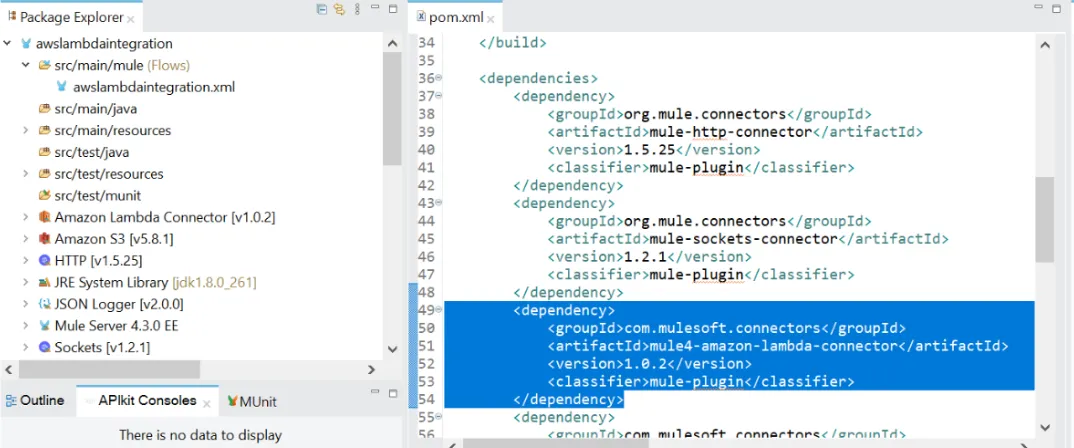
First, we need to create a new project in Anypoint Studio and manage dependencies as shown below:
Add the Amazon Lambda Connector dependency -> Finish -> Apply and close.
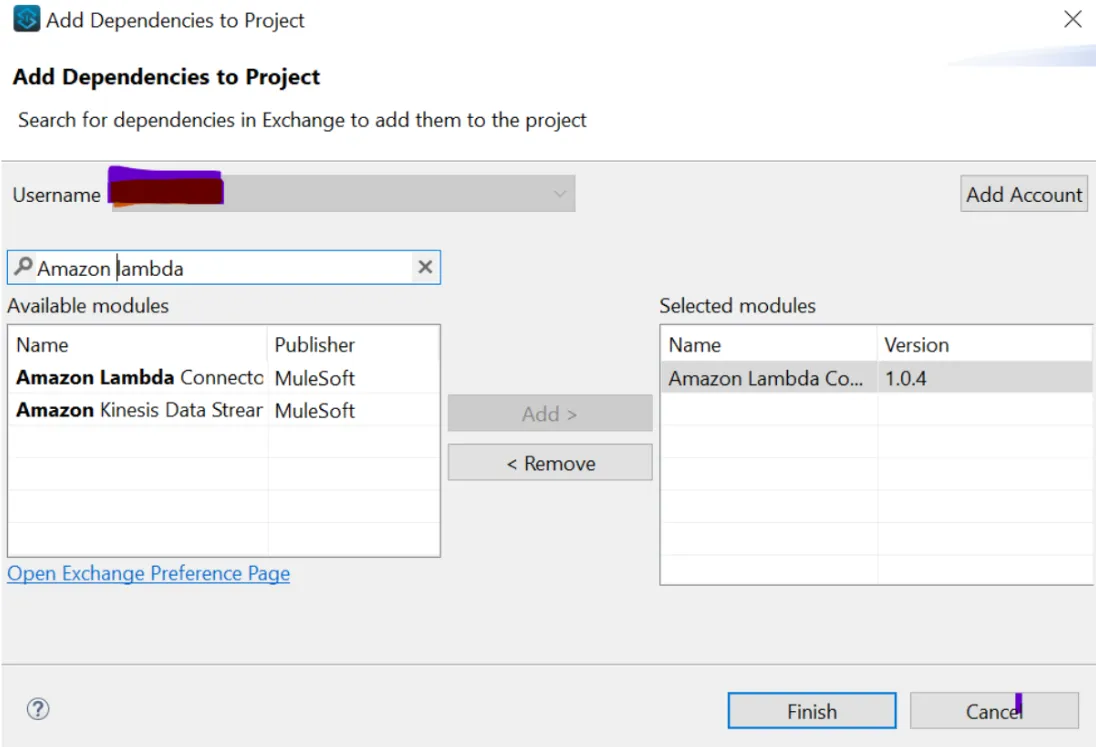
Now, this dependency will be added to the pom.xml.
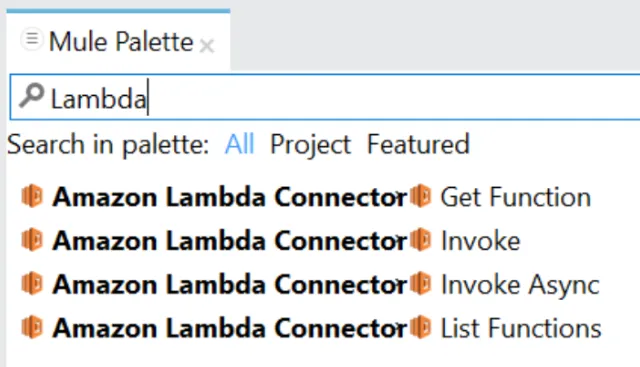
You will now be able to see all the Amazon Lambda Connectors available in the Mule Palette.
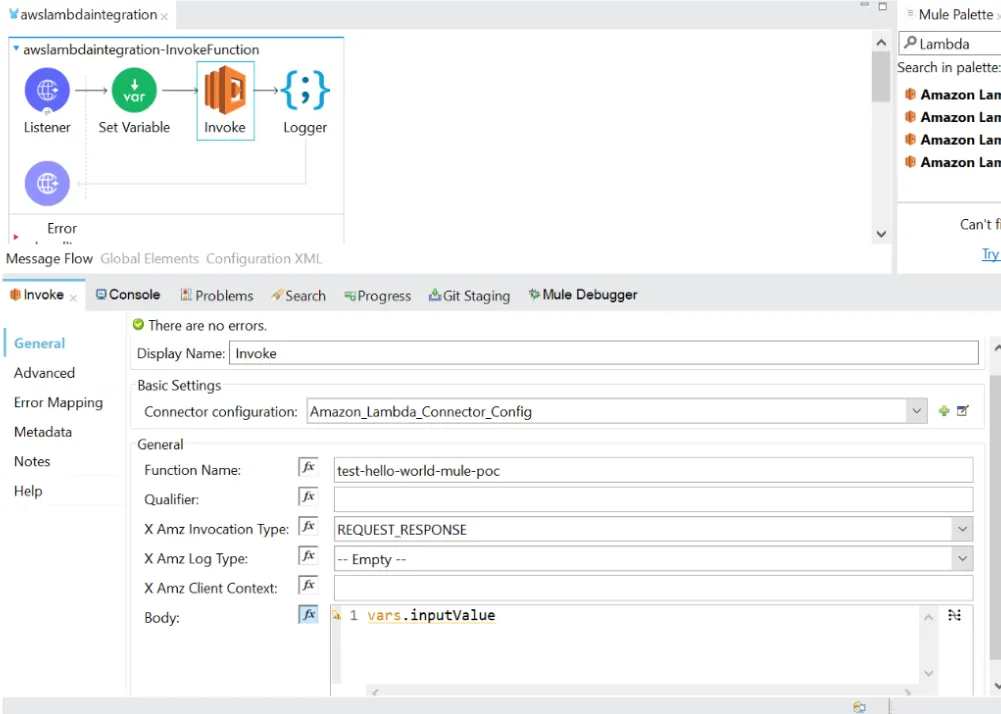
5. How to use the Invoke, Get Function, and List Functions Lambda Connectors
More information on these connectors can be found at https://docs.mulesoft.com/amazon-lambda-connector/1.0/amazon-lambda-connector-reference
Invoke Connector
“Invokes a Lambda function. You can invoke a function synchronously (and wait for the response), or asynchronously.
To invoke a function asynchronously, set InvocationType to Event.
For synchronous invocation, details about the function response, including errors, are included in the response body and headers. For either invocation type, you can find more information in the execution log and trace.”
More information at this link.
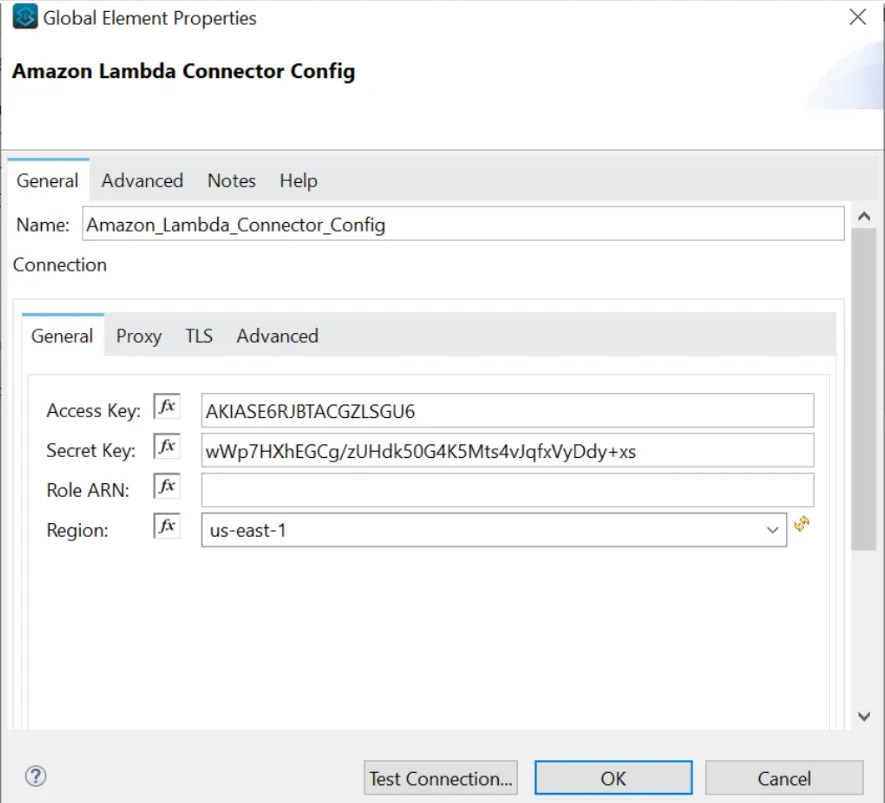
The access key and the secret key are obtained as shown in the “Manage Access to AWS resources” step.
Now let us test this using Postman.
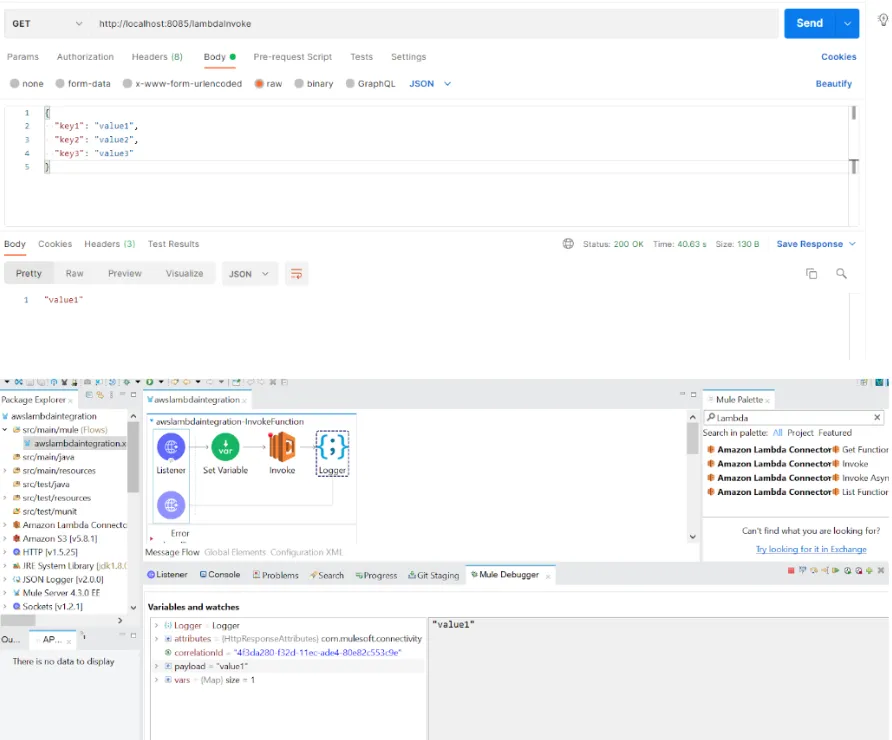
Get Function Connector
“Returns information about the function or function version, with a link to download the deployment package that’s valid for 10 minutes. If you specify a function version, only details that are specific to that version are returned.”
More information at this link.
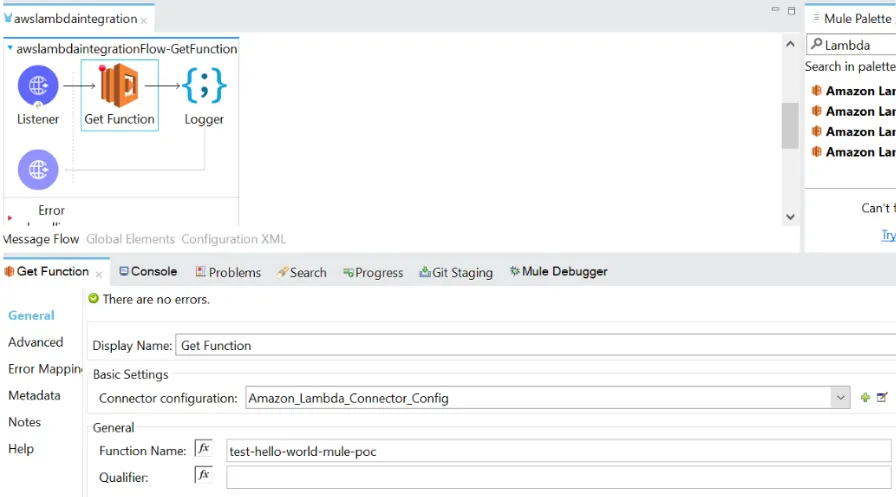
The response from the Get Function is as shown below.
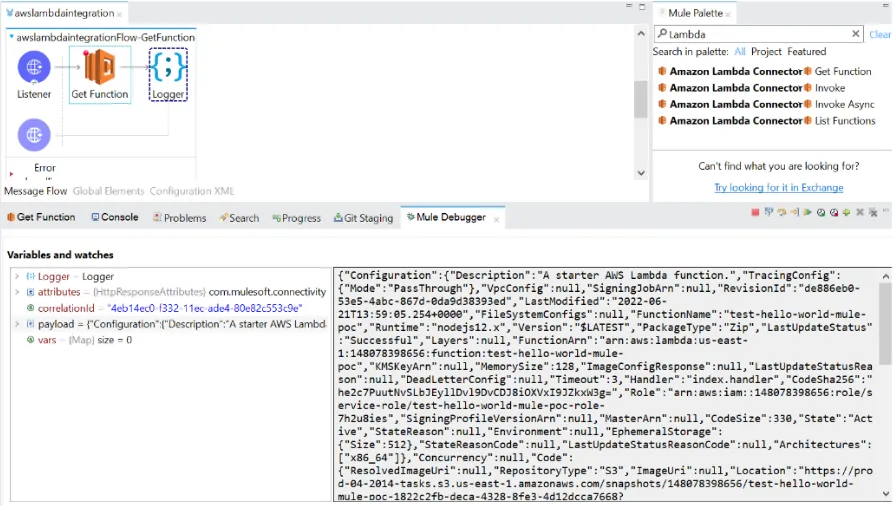
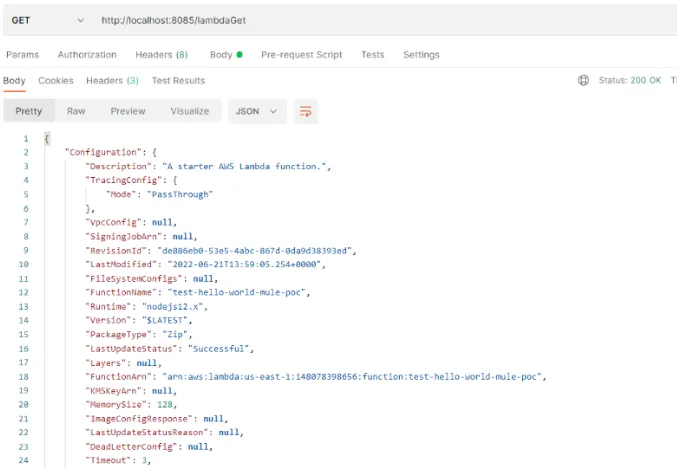
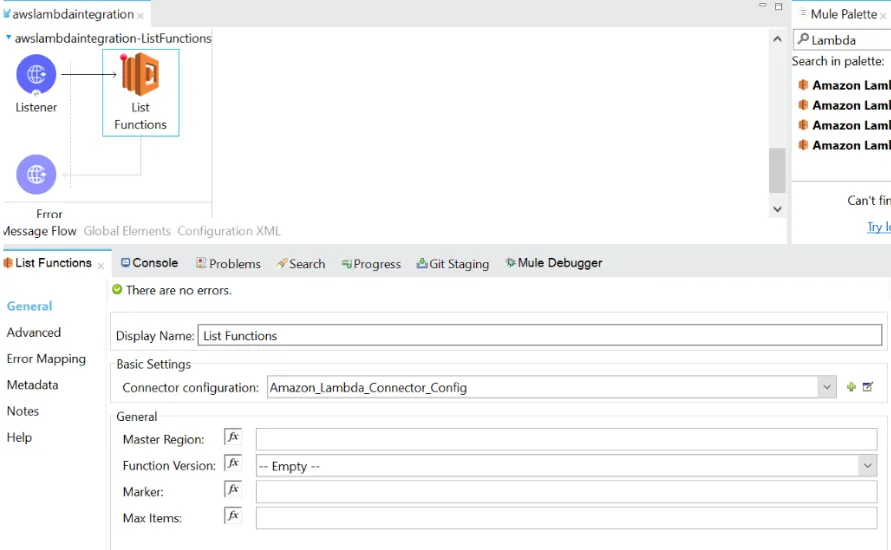
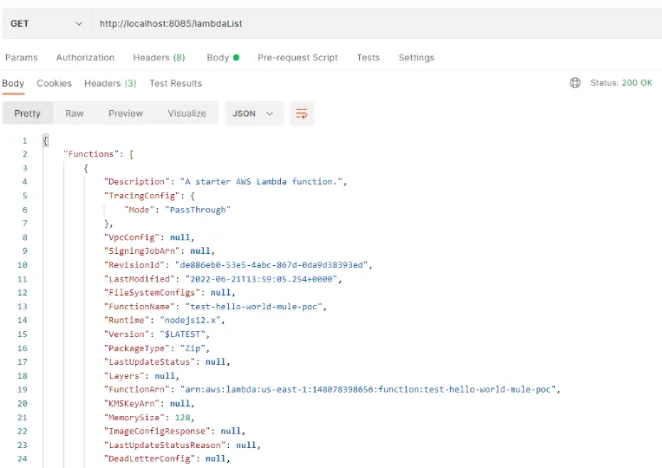
List Functions Connector
“Returns a list of Lambda functions, with the version-specific configuration of each function. Lambda returns up to 50 functions per call. Set FunctionVersion to ALL to include all published versions of each function in addition to the unpublished version. The ListFunctions action returns a subset of the FunctionConfiguration fields.”
More information at this link.
Conclusion
This is how we can easily create functions in AWS Lambda and Integrate with MuleSoft using the Amazon Lambda Connectors.
Best practices
For the purpose of simplification, I have mentioned the configuration details directly. But it is always recommended to externalize these details and encrypt the sensitive data.
GitHub repository
Thanks for reading my article and I hope it will be of some use! See you in the next post!
-Pravallika
Reader notes
Helpful comments preserved from the original post.
- Praveen Kumar · Jan 18, 2024
Hey guys😋, i have doubt while creating the user in AWS access key is not created so i create it separately, while creating i give use case as local code. by using those i configured the invoke connector and the test connection is successful. when i gave a hit in postman i am getting this response.
{
  "traceId": null,
  "errorType": "AMAZON-LAMBDA:NOT_FOUND",
  "errorMessage": "ServerError Request returned status code 404"
}
In the console:
ERROR 2024-01-18 10:37:14,844 [[MuleRuntime].uber.03: [aws-lambda].uber@org.mule.runtime.core.privileged.processor.chain.AbstractMessageProcessorChain.initialise:750 @5067e28b] [processor: globalErrorHandler/7/processors/0; event: 996bfa60-b630-11ee-9328-111112334] org.mule.runtime.core.internal.processor.LoggerMessageProcessor: {
  "traceId": null,
  "errorType": "AMAZON-LAMBDA:NOT_FOUND",
  "errorMessage": "DetailedErrorDescription: Request returned status code 404"
}
INFO  2024-01-18 10:37:14,880 [[MuleRuntime].uber.06: [aws-lambda].globalErrorHandler.CPU_INTENSIVE @7e34fc17] [processor: globalErrorHandler/7/processors/2; event: 996bfa60-b630-11ee-9328-3417ebb83582] org.mule.runtime.core.internal.processor.LoggerMessageProcessor: ================>500 --- AMAZON-LAMBDA:NOT_FOUND --- AMAZON-LAMBDA:NOT_FOUND-- ServerError Request returned status code 404
ERROR 2024-01-18 10:37:14,905 [[MuleRuntime].uber.06: [aws-lambda].globalErrorHandler.CPU_INTENSIVE @7e34fc17] [processor: ; event: 996bfa60-b630-11ee-9328-3417ebb83582] org.mule.runtime.core.privileged.exception.DefaultExceptionListener:
********************************************************************************
Message               : Request returned status code 404
Element               : (None)
Element DSL           : (None)
Error type            : AMAZON-LAMBDA:NOT_FOUND
FlowStack             : (None)
Thanks in advance!!!!!
-
Reply to Praveen Kumar
Praveen Kumar · Jan 25, 2024Actually! I found the error. If we gave the wrong function name this error will born!
FAQs
Frequently asked questions about this post.
-
What does the Anypoint Connector for Amazon Lambda let me do?
It enables you to execute AWS Lambda operations within your Mule flows, and you can then use the response of the Lambda operation to process another Mule flow as needed.
-
How do I get the access key and secret key needed for the Lambda connector?
You create an IAM user in AWS with the programmatic AWS credential type, attach the
AWSLambda_FullAccesspolicy directly, and create the user; on the success screen you make a note of the Access Key ID and Secret access key because you cannot retrieve them again. -
Which Lambda operations are available in the Mule Palette after adding the connector?
After adding the Amazon Lambda Connector dependency you can see Get Function, Invoke, Invoke Async, and List Functions in the Mule Palette.
-
What's the difference between invoking a Lambda function synchronously and asynchronously?
To invoke a function asynchronously you set InvocationType to Event, while for synchronous invocation details about the function response, including errors, are included in the response body and headers, and for either type you can find more information in the execution log and trace.
-
Why might I get an AMAZON-LAMBDA:NOT_FOUND error returning status code 404?
As noted in the reader comments on this post, that error appears when the wrong function name is given to the Invoke connector.
-
Should I hardcode the connector configuration details in a real project?
No; the configuration details were entered directly only for simplification, and it is always recommended to externalize these details and encrypt the sensitive data.